Installation guide
Step-by-step instructions for putting a computer, server or container on your MAE Routing network.
Before you start
- A network. Create one free if you don't have one yet. The network name is the first part of its address:
for
acme.routing.maesuaisystem.comit isacme. Ask your admin if you are not sure. - An account in that network. Whoever created the network is its owner. Everyone else joins with an invite link from Users → Invite user in the console.
- Admin rights on the device: Administrator on Windows, root or
sudoon Linux. - Outgoing internet access. The app only connects outwards: TCP 443 to the coordination server, and UDP for direct connections. Nothing has to be opened on your router or firewall. Where UDP is blocked, traffic goes through our relay instead.
Windows
Windows 10 or 11, 64-bit. The app runs as a Windows service, with an icon next to the clock.
1Download and run the installer
Open the downloaded MAERouting-…-setup.exe. Because the installer is new, Windows may show
“Windows protected your PC”: choose More info → Run anyway, then Yes when Windows asks to allow changes.
Press Next on the welcome page, keep the folder C:\Program Files\MAE Routing and press Install.
On the last page leave Start MAE Routing now ticked and press Finish.
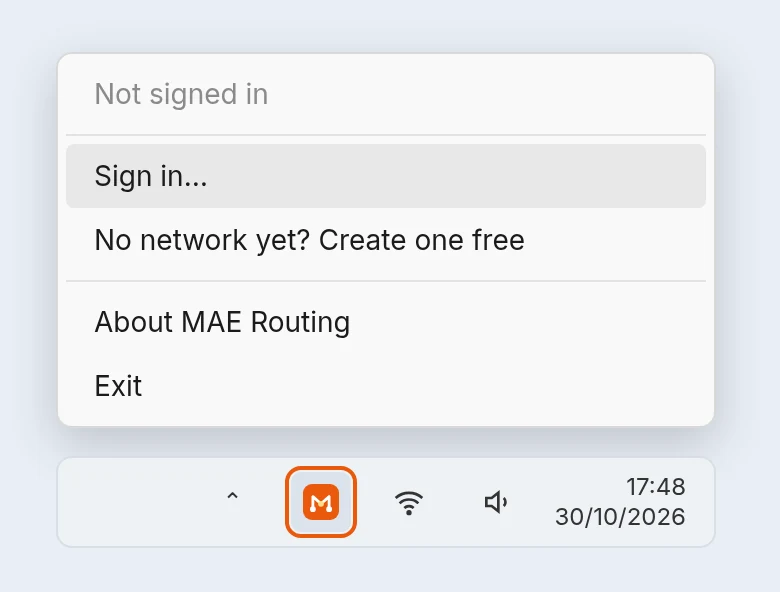
2Sign in from the icon next to the clock
Click the MAE Routing icon in the bottom-right corner of the screen. If it is not there, click the ^ arrow to show hidden icons. Choose Sign in…, type your network name and press Next.
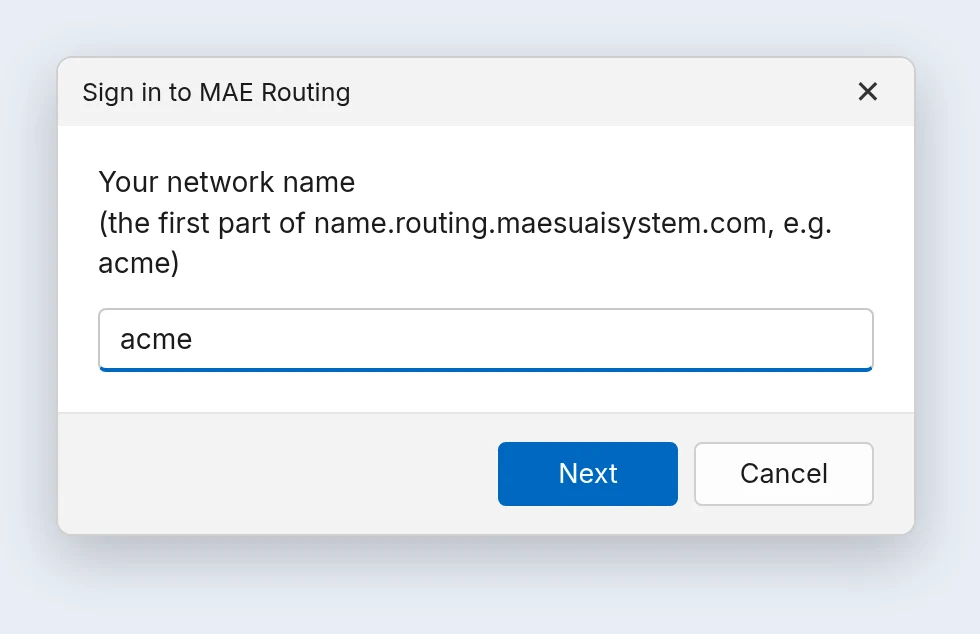
acme3Confirm in the browser
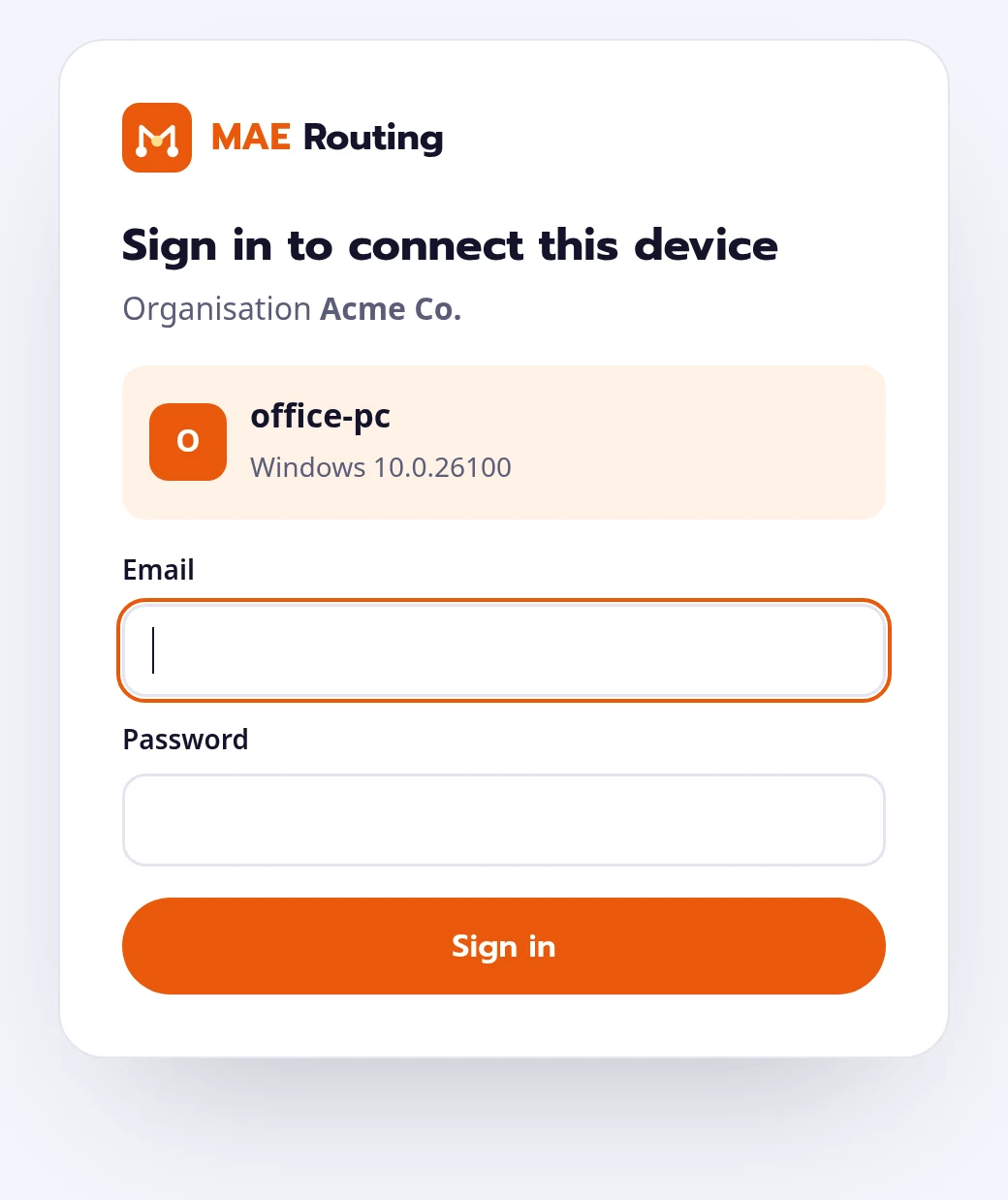
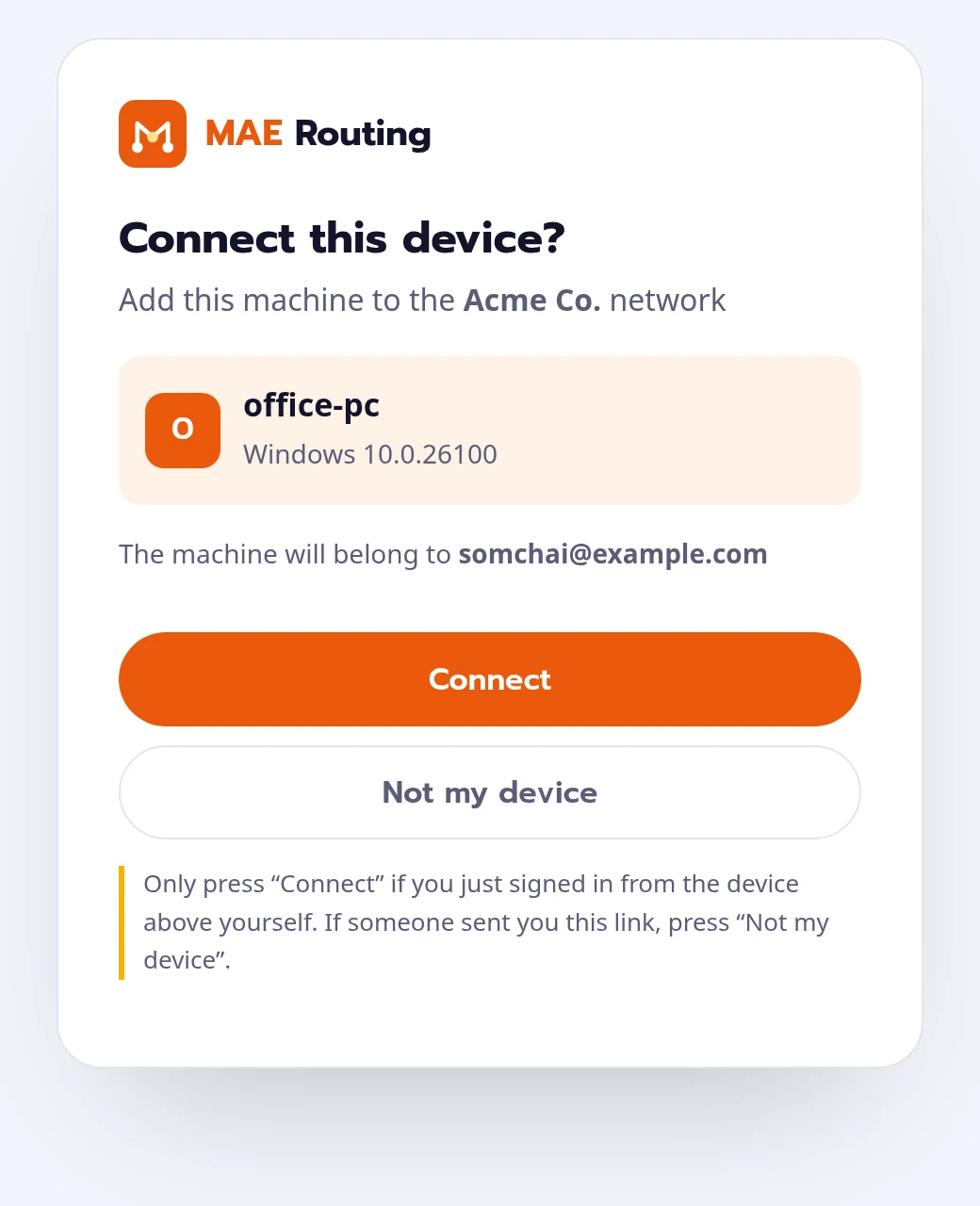
Your browser opens a MAE Routing page. Sign in with your email and password, check that the device shown is this computer, and press Connect.
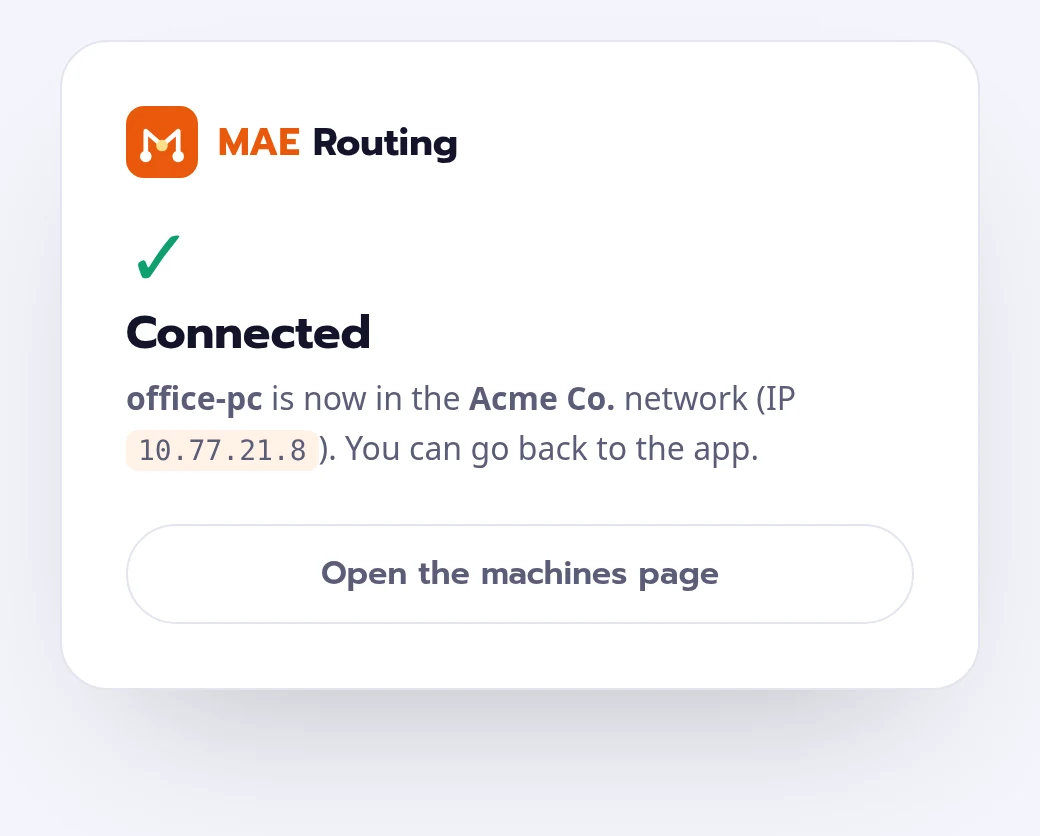
4You're connected
Windows shows “Signed in. This machine is now on the network.” and the menu now reads ● Connected with your network name.
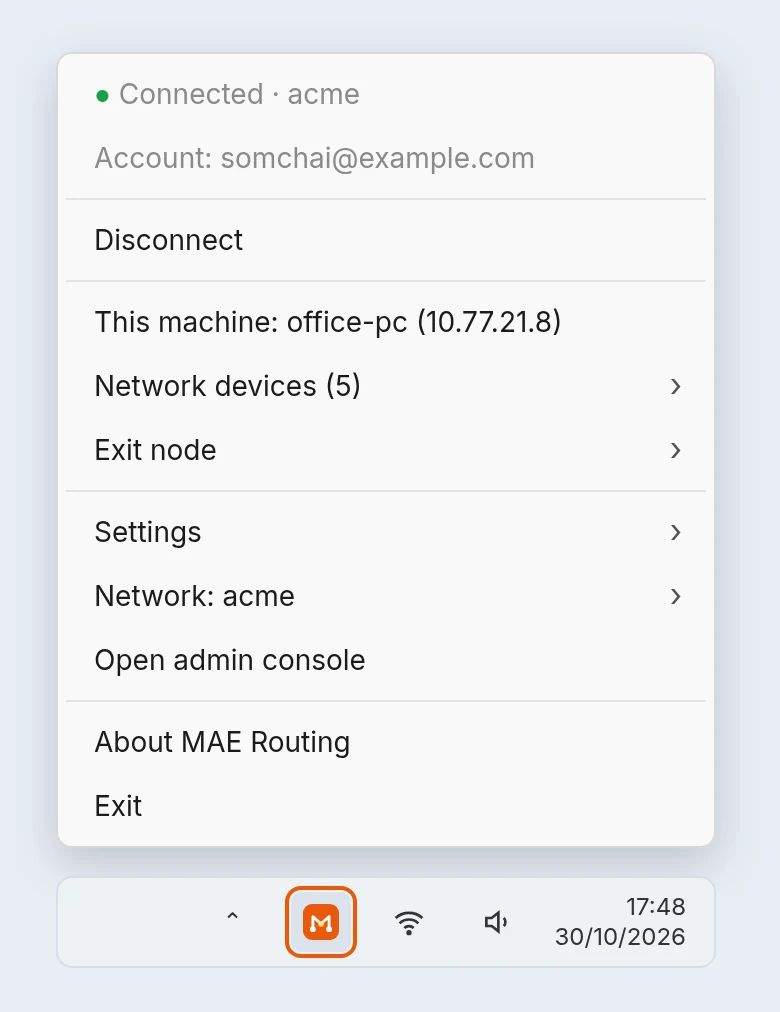
- This machine and Network devices: click one to copy its IP address.
- Exit node: send all internet traffic through another machine in the network.
- Settings: Use network DNS and Use subnet routes are on by default. Run unattended keeps the connection up when nobody is signed in to Windows, for servers.
- Network: sign in to another network or sign out.
- Exit only closes the icon; the connection keeps running.
Prefer the command line? The installer adds mae-routing to the path. In Command Prompt run as Administrator:
mae-routing up --org your-networkLinux
Any Linux with systemd or OpenRC on x86_64, arm64, armv7 or i386: Ubuntu, Debian, RHEL, Rocky, Alma, Fedora, Arch, SUSE, Alpine, Raspberry Pi OS, Proxmox and more.
1Run the install command
Replace your-network with your network name:
curl -fsSL https://routing.maesuaisystem.com/install.sh | sudo sh -s -- --org your-networkNo curl on the machine? Use wget instead. If you are root already, leave out sudo.
wget -qO- https://routing.maesuaisystem.com/install.sh | sudo sh -s -- --org your-networkThe script picks the package for your CPU, checks its checksum, installs the mae-routing command and the
mae-routingd service, starts it at boot, and then signs in. It prints a link:
To authenticate, visit:

https://your-network.routing.maesuaisystem.com/register/hskey-authreq-…2Open the link and press Connect
Open the link on any computer or phone, sign in, check the machine name and press Connect: the same pages as in Windows step 3. The command then finishes on its own.
3Check it
mae-routing statusThe first line is this machine; the others are the rest of the network, with their address, name, owner, system and state:
10.77.156.18   web-01           somchai@  linux    -
10.77.12.4     office-gw        somchai@  linux    -
10.77.40.9     sales-notebook   malee@    windows  offline, last seen 2h ago
Servers without a browser
Create an auth key in the console under Settings → Auth keys and add it to the command. The machine joins straight away, with no sign-in link:
curl -fsSL https://routing.maesuaisystem.com/install.sh | sudo sh -s -- --org your-network --auth-key hskey-auth-…Use --hostname to choose the machine's name, a Reusable key to add several servers, and a key with tags for servers
that should not belong to a person (their keys do not expire). All options are on the download page.
Install from a package
Prefer your package manager? Download the package for your CPU from the Linux packages list, then install it and join your network:
# Debian, Ubuntu, Raspberry Pi OS, Proxmox
sudo apt install ./mae-routing_*_amd64.deb
# RHEL, Rocky, Alma, Fedora
sudo dnf install ./mae-routing-*.x86_64.rpm

sudo mae-routing up --org your-network
Docker
The image ghcr.io/maxspeedcom/mae-routing runs on amd64, arm64 and armv7. Each container is a machine of its own in the network.
1Create an auth key
In the console open Settings → Auth keys and create a key. Tick Reusable to use it for several containers, and Ephemeral for short-lived ones (they are removed 30 minutes after going offline). Copy the key: it is shown only once.
2Start the container
docker run -d --name mae-routing --restart unless-stopped \
  -e MAE_ORG=your-network -e MAE_AUTHKEY=hskey-auth-… -e MAE_HOSTNAME=docker-01 \
  -v mae-routing:/var/lib/mae-routing ghcr.io/maxspeedcom/mae-routing
Or with Docker Compose, in compose.yaml, then docker compose up -d:
services:
  mae-routing:
    image: ghcr.io/maxspeedcom/mae-routing
    restart: unless-stopped
    environment:
      MAE_ORG: your-network
      MAE_AUTHKEY: hskey-auth-…
      MAE_HOSTNAME: docker-01
    volumes:
      - mae-routing:/var/lib/mae-routing
volumes:
  mae-routing:
Keep the volume: it holds the machine's keys, so the container keeps its name and address when it is recreated.
3Check it
docker exec mae-routing mae-routing status
docker logs mae-routing
Started without MAE_AUTHKEY? The sign-in link is in docker logs; open it and press Connect.
Userspace or kernel networking
By default the container uses userspace networking: it needs no TUN device and no extra rights. Other containers can use the network
through a proxy in it: set MAE_SOCKS5_SERVER=:1055 or MAE_HTTP_PROXY=:1080.
For a subnet router, an exit node, or full routing, use kernel networking:
docker run -d --name mae-routing --restart unless-stopped \
  --cap-add NET_ADMIN --device /dev/net/tun \
  -e MAE_ORG=your-network -e MAE_AUTHKEY=hskey-auth-… -e MAE_USERSPACE=false \
  -v mae-routing:/var/lib/mae-routing ghcr.io/maxspeedcom/mae-routing
Add --network host if the host itself should use the network. Every variable is listed on the
download page.
Check the connection
- In the console, the Machines page shows the new machine as Connected with its
10.77.x.xaddress. - From the machine, ping another one by name:
mae-routing ping office-gwpong from office-gw (10.77.12.4) via DERP(bkk) in 21ms pong from office-gw (10.77.12.4) via 203.0.113.10:41642 in 3msvia DERP(bkk)means the reply came through our relay in Bangkok; an address and port means a direct connection. The first replies often use the relay while a direct path is set up. mae-routing netcheckshows whether UDP works and which relay is nearest (MAE Bangkok).- Use names instead of addresses:
ssh office-gw, orhttp://nas.your-network.mae.internalin a browser.
Update and remove
| Update | Remove | |
|---|---|---|
| Windows | Download and run the latest installer. The machine stays signed in. | Settings → Apps → Installed apps → MAE Routing → Uninstall |
| Linux | Run the install command again (or install the newer package). | curl -fsSL https://routing.maesuaisystem.com/install.sh | sudo sh -s -- --uninstall; add --purge to delete the machine's keys too |
| Docker | docker pull ghcr.io/maxspeedcom/mae-routing, then recreate the container (docker compose up -d). |
docker rm -f mae-routing; docker volume rm mae-routing deletes the keys |
Removing the app does not take the machine out of the network. To free its place, open the console and choose ⋯ → Remove machine… on that machine.
Troubleshooting
| What you see | What to do |
|---|---|
| “Windows protected your PC” | Choose More info → Run anyway. |
| No MAE Routing icon next to the clock | Click the ^ arrow to show hidden icons, or open MAE Routing from the Start menu. |
| “MAE Routing service not running” | Restart the computer. If it stays, run the installer again. |
| “Invalid network name” | Type only the first part of the address, such as acme: a-z, 0-9 and -, 3 to 32 characters. |
| “This account is not in this organisation” | Ask an admin of the network for an invite link, or choose Sign out / switch account and use another account. |
| “This network is full” | The Free plan holds 3 machines. Remove machines you no longer use, or move to a paid plan. |
| Linux: “run it as root” | Put sudo before sh: … | sudo sh -s -- --org your-network |
| Linux: “No /dev/net/tun here: using userspace networking.” | Normal in containers such as LXC. For full networking, give the container
the /dev/net/tun device (Proxmox: Resources → Add → Device Passthrough), set FLAGS="" in
/etc/default/mae-routingd and run sudo systemctl restart mae-routingd. |
| A machine asks to sign in again | Its key expired (after 180 days by default). Sign in again; for servers choose ⋯ → Disable key expiry in the console. |
Pings always go via DERP | UDP is blocked on one side. It still works through the relay; allow outgoing UDP for direct, faster connections. |
| DNS stops working next to another VPN | Run sudo mae-routing set --accept-dns=false on that machine. |
| A machine cannot reach another | Check the rules on the Access controls page, then test with mae-routing ping NAME. |
Still stuck? Contact us and tell us what you see.